Leads List
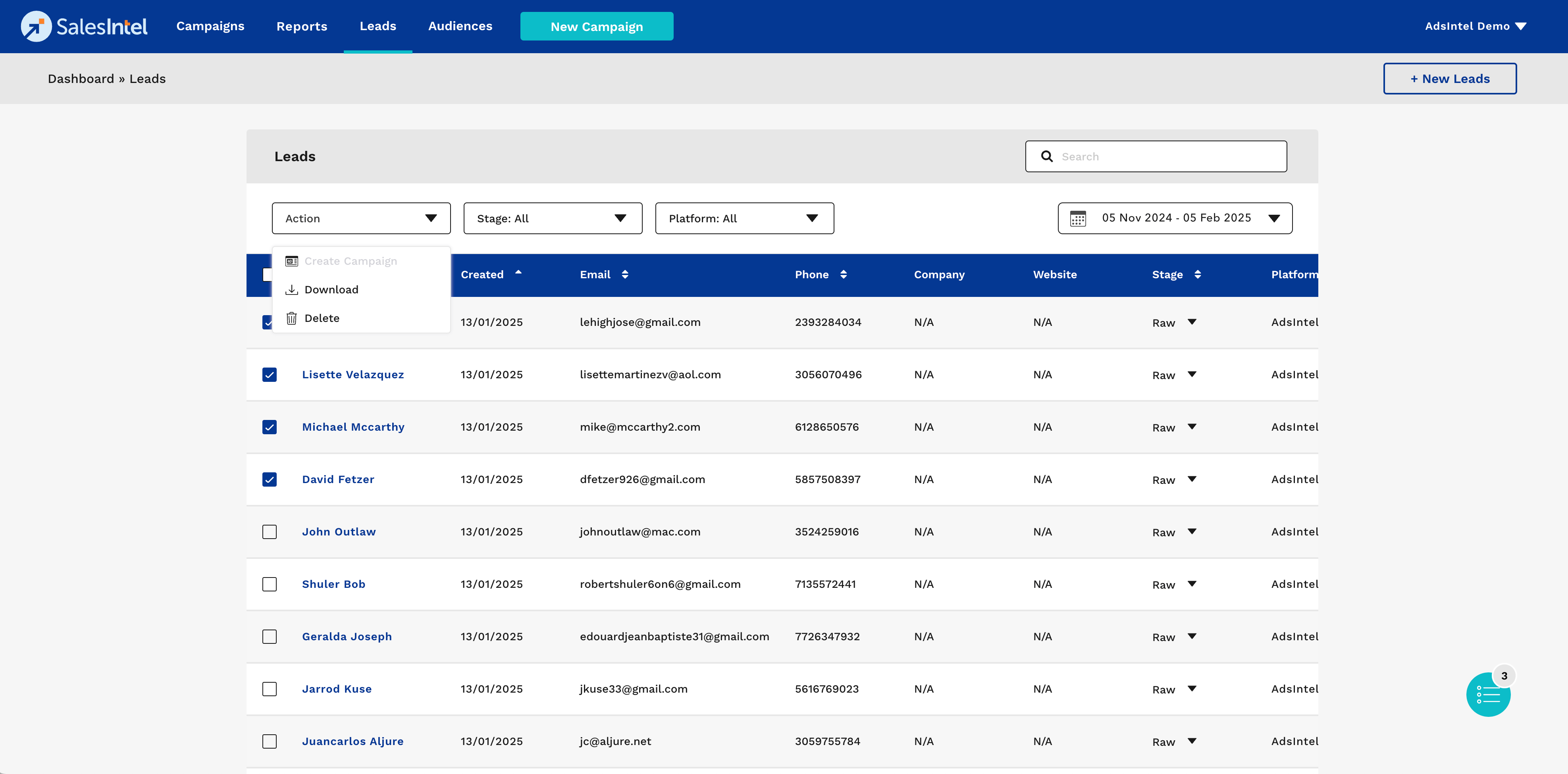
The Leads List section provides an overview of all captured leads, including key details and management actions.
Viewing Leads
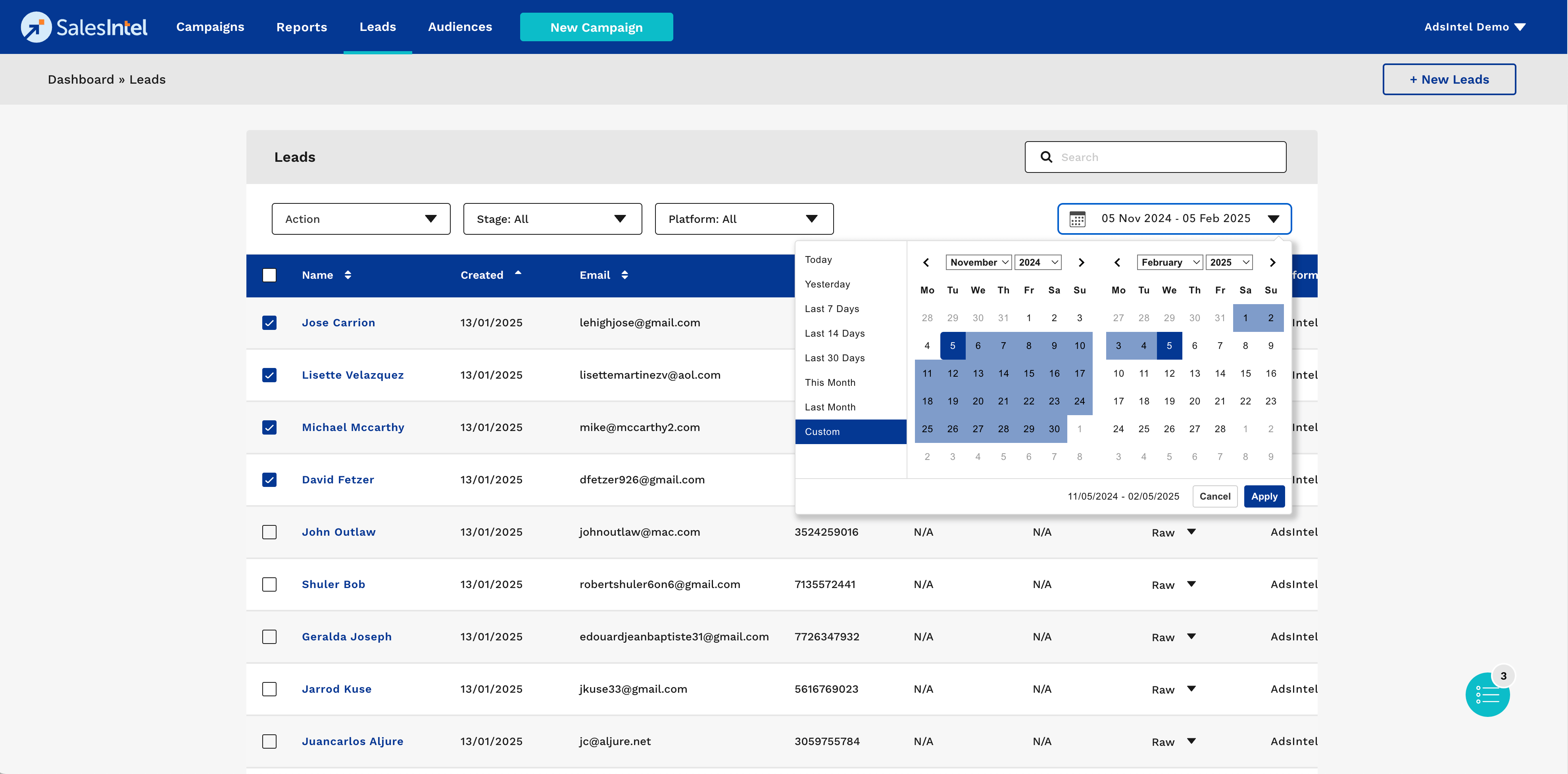
The Leads List displays a table with essential details about each lead.
- Each lead entry includes Name, Created Date, Email, Phone, Company, Website, Stage, and Platform.
- Users can use the search bar to quickly find specific leads.
- The table allows sorting by columns such as Name, Created Date, and Email.
Filtering Leads
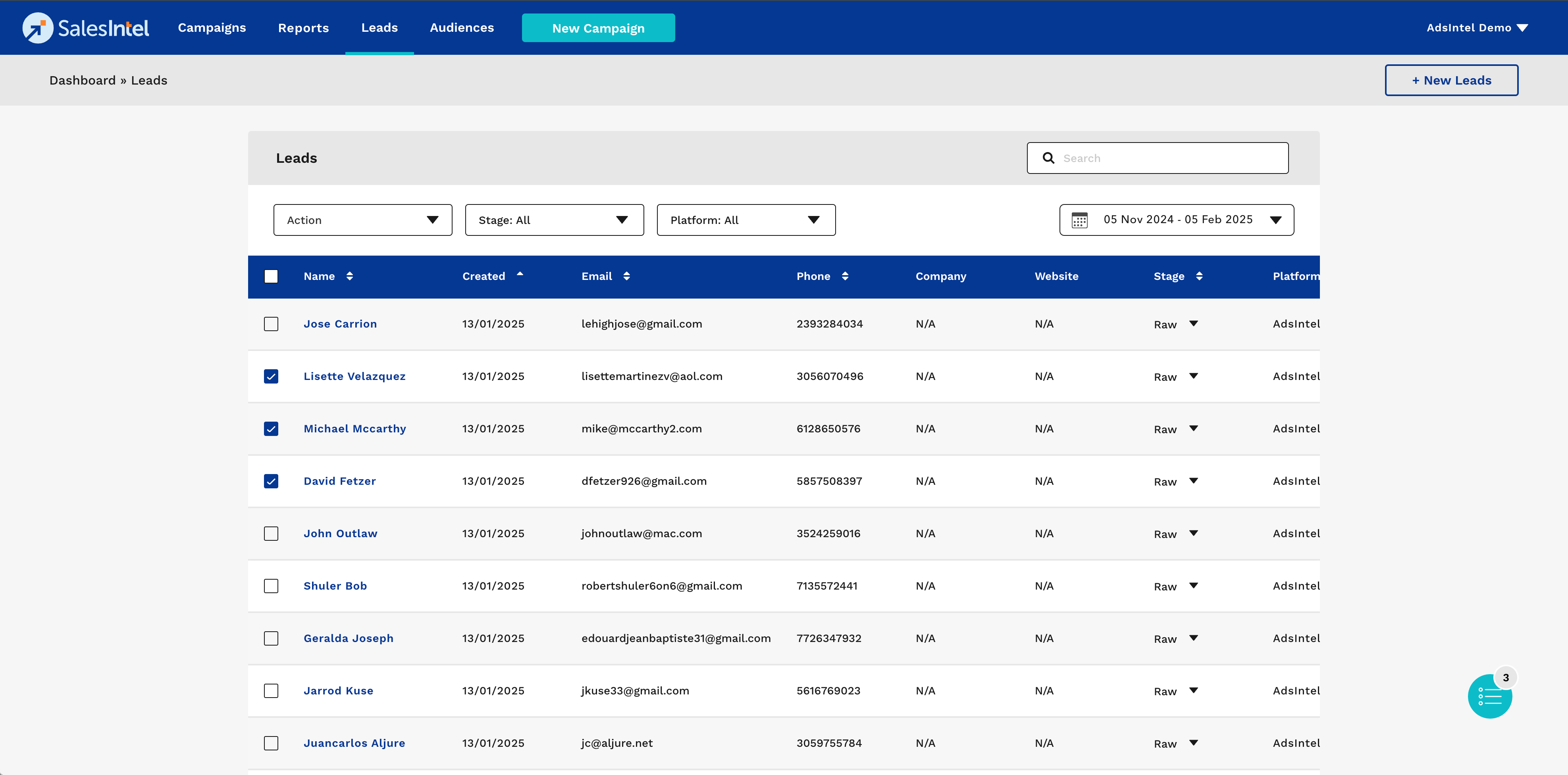
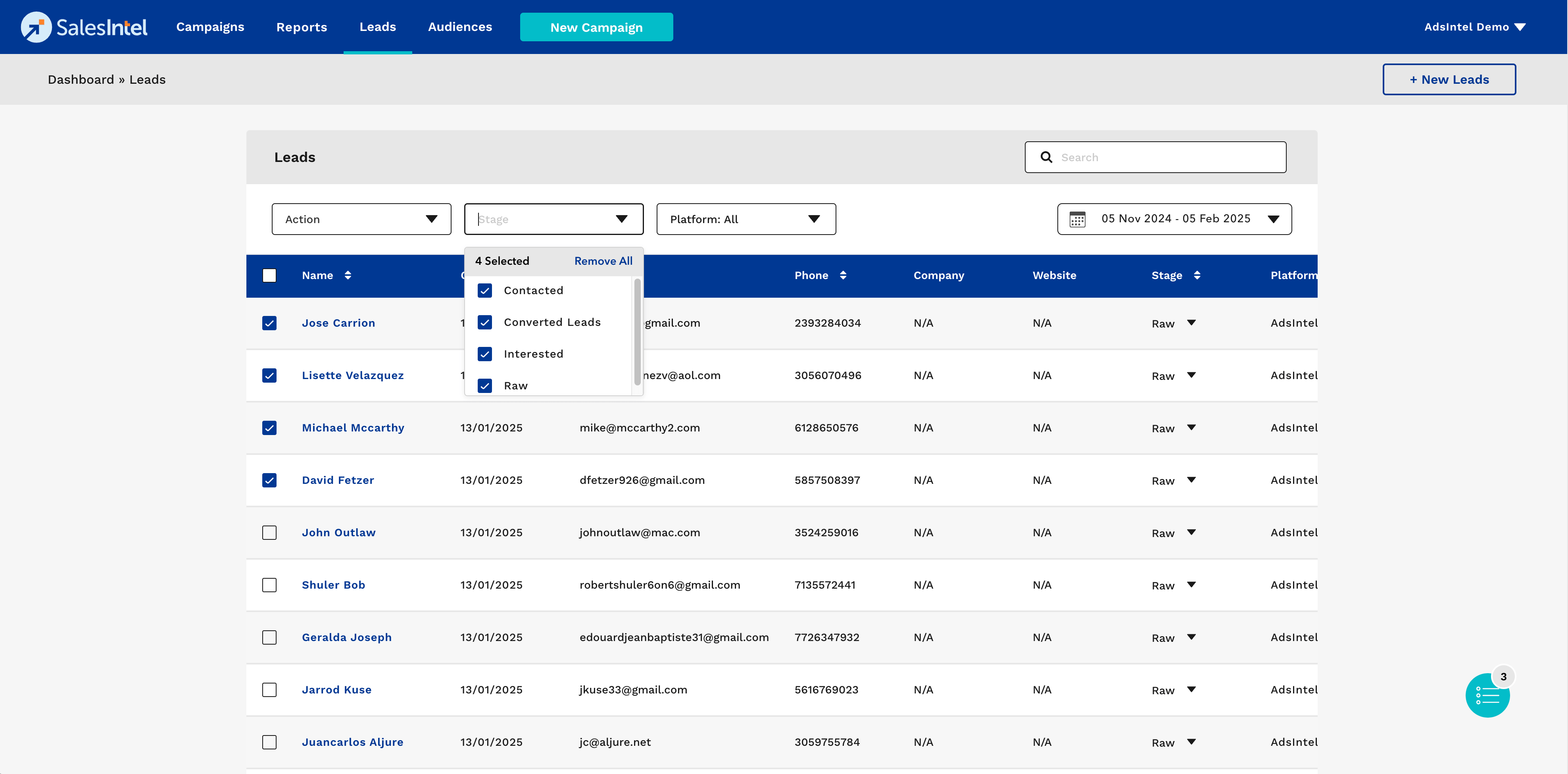
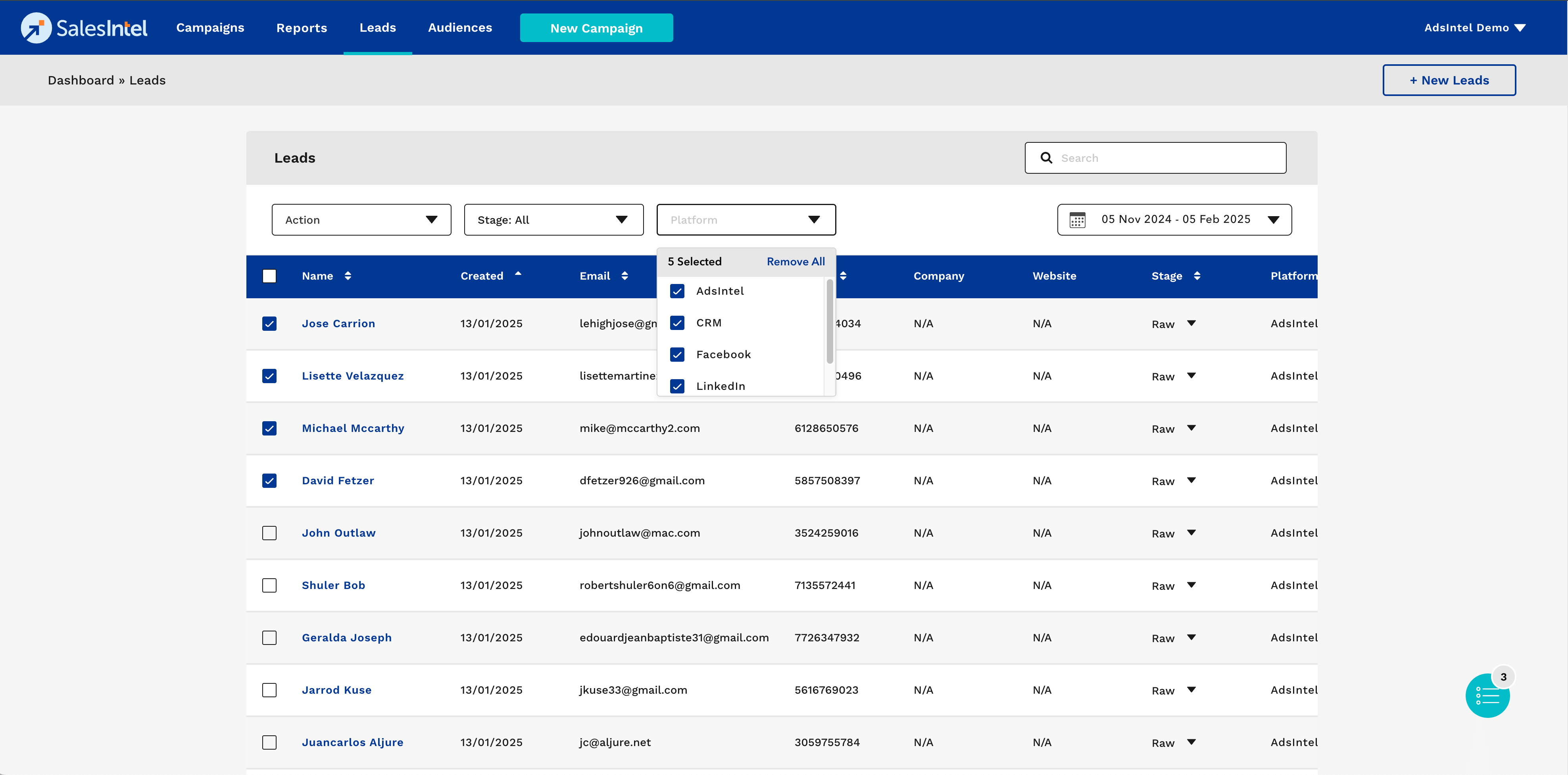
Users can filter the leads based on multiple parameters:
- Selecting **Stage** (Raw, Contacted, Interested, Converted Leads).
- Filtering by **Platform** (AdsIntel, CRM, Facebook, LinkedIn, HubSpot, etc.).
- Using the **Date Picker** to select a specific time range.
Editing a Lead
To modify lead details, follow these steps:
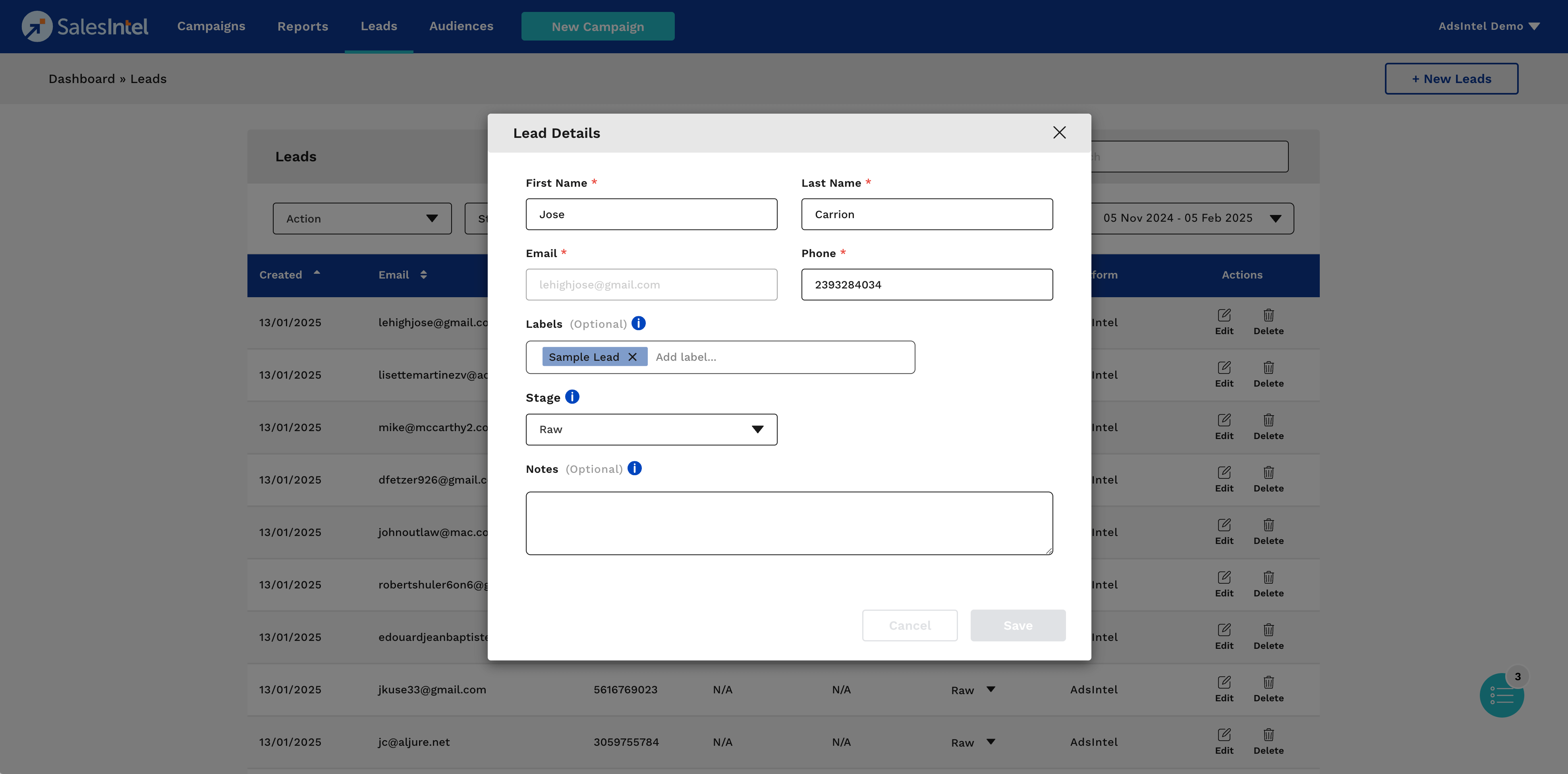
- Click on a lead entry to open the **Lead Details** popup.
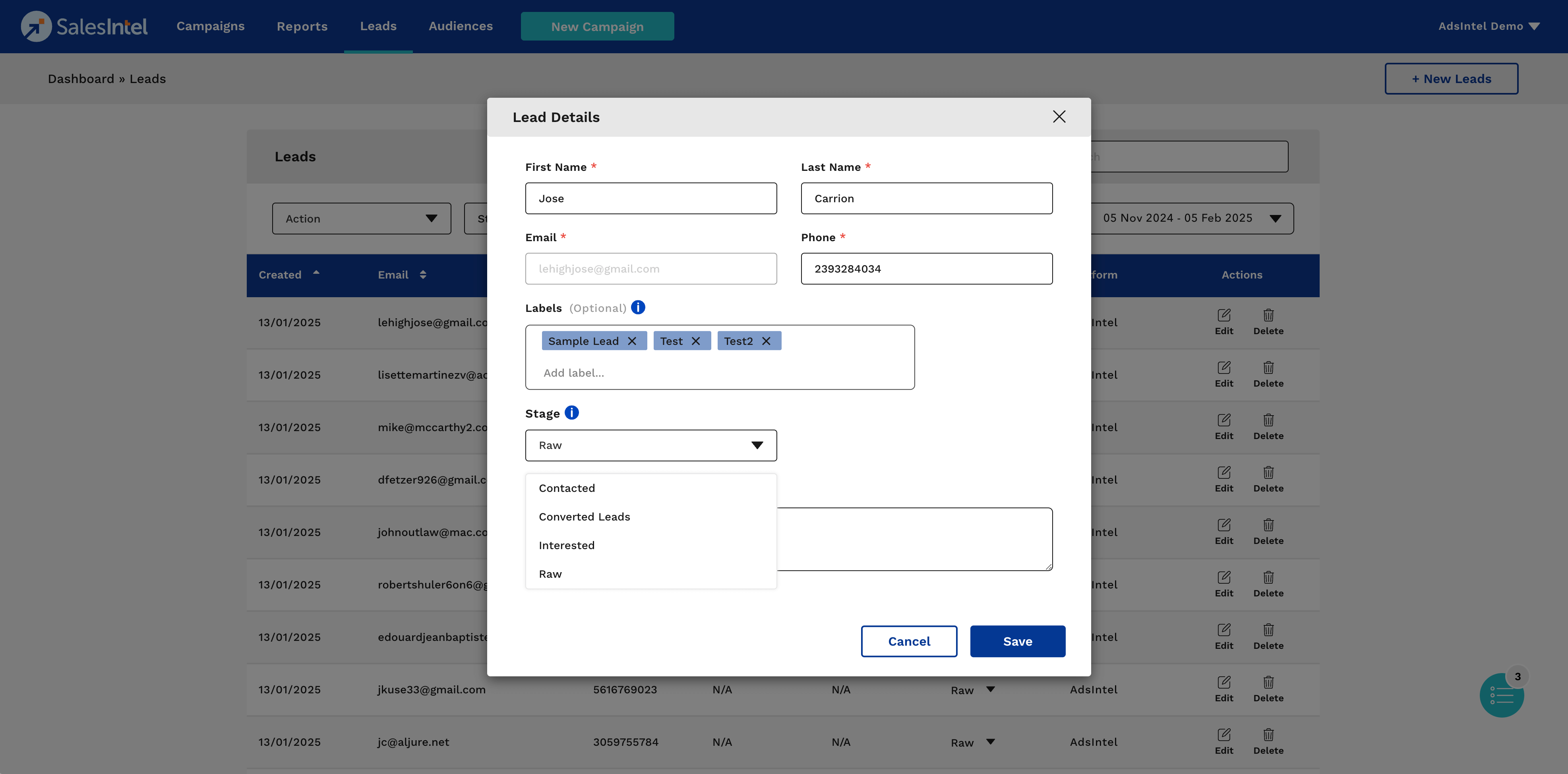
- Edit fields such as Name, Email, Phone, and Labels.
- Modify the **Stage** using the dropdown menu.
- Click **Save** to confirm changes.
Deleting a Lead
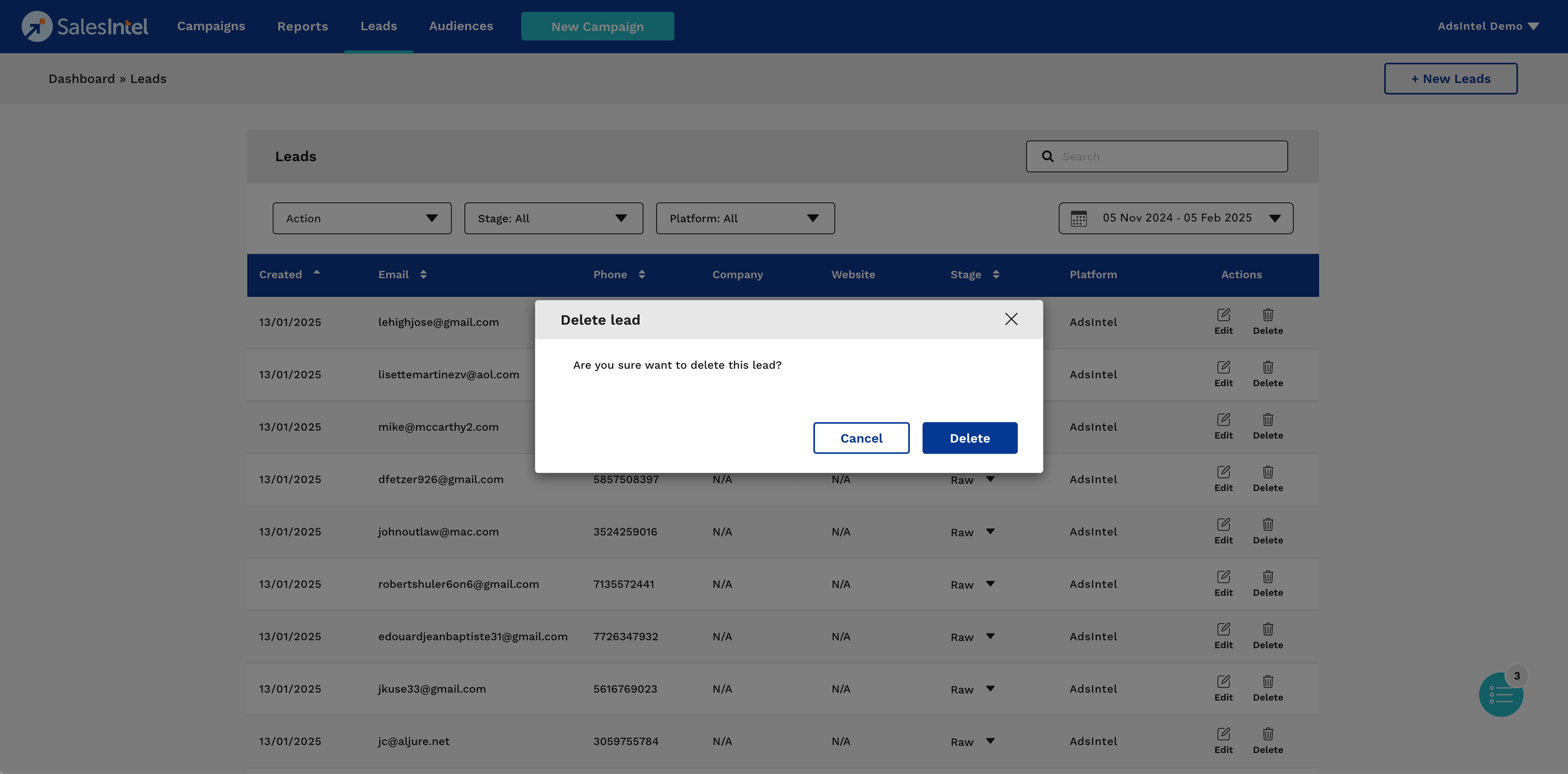
To delete a lead:
- Click the **Delete** button in the **Actions** column.
- Confirm the deletion in the popup window.
Performing Bulk Actions
Users can apply actions to multiple leads at once:
- Select multiple leads using checkboxes.
- Click on the **Action** dropdown to choose from available bulk actions (Download, Delete, or Create Campaign).